

So, you want to install WordPress on your website? Welcome to the club! WordPress isn’t some mysterious tech magic; it’s the platform that powers over 43% of all websites worldwide. Yeah, you read that right. Why? Because it’s flexible, beginner-friendly, and best of all, totally free. You can slap on thousands of themes to make your site look like a million bucks without hiring a designer.
And plugins? Oh, there are tens of thousands, turning your site into exactly what you need, whether a blog, a store, or a portfolio. But if you think installing WordPress is rocket science, relax, it’s not. This guide will walk you through how to start a website on WordPress in simple, no-nonsense steps. Let’s get your site live and kicking with WordPress SEO basics and everything else you’ll need.
Why You Should Install WordPress on Your Website?
WordPress is hands down one of the best tools for creating any kind of website, whether a blog, business site, or e-commerce store. It’s incredibly flexible and user-friendly, making it perfect for beginners without any coding skills. Plus, it’s free and open-source, so you don’t have to worry about expensive licenses or fees. With thousands of free and premium themes available, you can easily customize the look and feel of your website to match your style or brand. On top of that, tens of thousands of plugins let you add powerful features like contact forms, SEO optimization, social media integration, and online shopping carts. When you install WordPress on your website, you get full control over design, content, speed, SEO settings, and functionality, giving you a solid foundation to grow and improve your online presence.
Step 1: Choose a Good Web Hosting Provider and Domain Name

Before installing WordPress on your website, you need a hosting provider and a domain name.
- Hosting: This is where your website lives on the internet. Choose a reliable web host that supports WordPress installations easily. Bluehost, SiteGround, and Hostinger are popular and beginner-friendly options that often come with one-click WordPress installers.

- Domain Name: This is your website’s address, like yoursite.com. Pick something memorable and relevant to your brand or content. Most hosting providers offer a free domain when you sign up for hosting.
Step 2: Access Your Hosting Control Panel (cPanel)
Once you’ve signed up for hosting and secured your domain, log in to your hosting dashboard. Most hosts provide a control panel called cPanel. This is where you’ll manage everything related to your website files, databases, email, and software installations. Look for the “WordPress” or “Softaculous” auto-installer in cPanel. This tool makes installing WordPress quick and easy.
Step 3: Use One-Click WordPress Installation (Best for Beginners)
The easiest and fastest way to install WordPress on your website is with your hosting’s one-click installer.
Here’s how:

- Log in to your hosting dashboard and open the WordPress installer tool, usually found under sections like “One-Click Installs,” “Softaculous,” or “Apps Installer.”
- Select the domain name where you want to install WordPress. This ensures your website files go to the right place.
- Fill in your site details: enter your website name, create an admin username (avoid “admin” for security), and set a strong password. This is how you'll log into your WordPress dashboard later.
- Choose your language preference to make the admin panel easy to use, and optionally select starter themes or plugins to get your site up quickly.
- Click the “Install” button and let the installer run. This usually takes a few minutes.
- After installation, you’ll see links to your live website and the admin dashboard URL (typically yourdomain.com/wp-admin). Use your admin credentials to log in and start customizing your site.
Step 4: Manual WordPress Installation (For More Control)

If your host doesn’t offer one-click installs, or if you want to learn the manual way, follow these steps:
- Download WordPress: Start by visiting WordPress.org and downloading the latest version of WordPress as a ZIP file. Save it somewhere easy to find on your computer.
- Upload WordPress Files: Extract the ZIP file on your computer. Then use an FTP client like FileZilla or your hosting provider’s file manager to upload all WordPress files and folders to your web server. Typically, these files go into the public_html folder, which is the root directory for your website.
- Create a MySQL Database: Log in to your hosting control panel (cPanel), find the MySQL Databases section, and create a new database. Then, create a database user with a strong password and assign this user all privileges for that database. Note down the database name, username, and password as you’ll need them soon.
- Edit wp-config.php: Locate the file named wp-config-sample.php among the uploaded files. Rename it to wp-config.php and open it in a text editor. Fill in the database name, username, password, and usually ‘localhost’ for the database host section. Save and close the file.
- Run Installation Script: In your browser, go to your website URL (yourdomain.com). WordPress will automatically launch its installation wizard. Follow the prompts by entering your site title, choosing an admin username and password, and providing your email address. Finish the setup, then log in to your new WordPress dashboard to start building your site.
This manual method offers more control but requires familiarity with FTP, databases, and file editing. If you prefer a simpler way, the one-click installer option from your host is faster and easier.
Step 5: Log in to Your WordPress Dashboard

When you type yourdomain.com/wp-admin into your browser and log in with your credentials, you enter the WordPress admin dashboard, your website’s control center. Here, you can manage everything about your website with ease. The dashboard displays widgets like “At a Glance,” showing you quick stats on posts, pages, and comments. You can create and publish blog posts or pages, control how your site looks by choosing and customizing themes, and add new features by installing plugins.
The left menu lets you navigate to comments where you moderate visitor feedback, and to the Media Library where you manage images and files. You can also tweak important site settings like permalinks, privacy, and SEO options. The dashboard is customizable, so you can arrange what you see to fit your workflow, making website management smoother and more efficient.
Step 6: Essential WordPress Setup for Beginners

After you install WordPress on your website, taking a few minutes to set up essential features will save you headaches later:
- Choose a simple, responsive theme that looks great on all devices.
- Set permalinks to ‘Post name’ (Settings > Permalinks) for a clean URL structure.
- Install a security plugin like Wordfence or Sucuri to protect your site.
- Set up backups using plugins like UpdraftPlus, so you never lose your content.
- Configure basic SEO with an SEO plugin such as Yoast SEO or All in One SEO.
- Create key pages like About, Contact, and Privacy Policy.
- Set your site title, tagline, and timezone in Settings > General.
- Connect to Google Analytics to track your visitors and performance.
- Add an SSL certificate for HTTPS security (many hosts offer free Let’s Encrypt certificates).
Step7: Choose a Perfect Premium WordPress Theme for Your Website
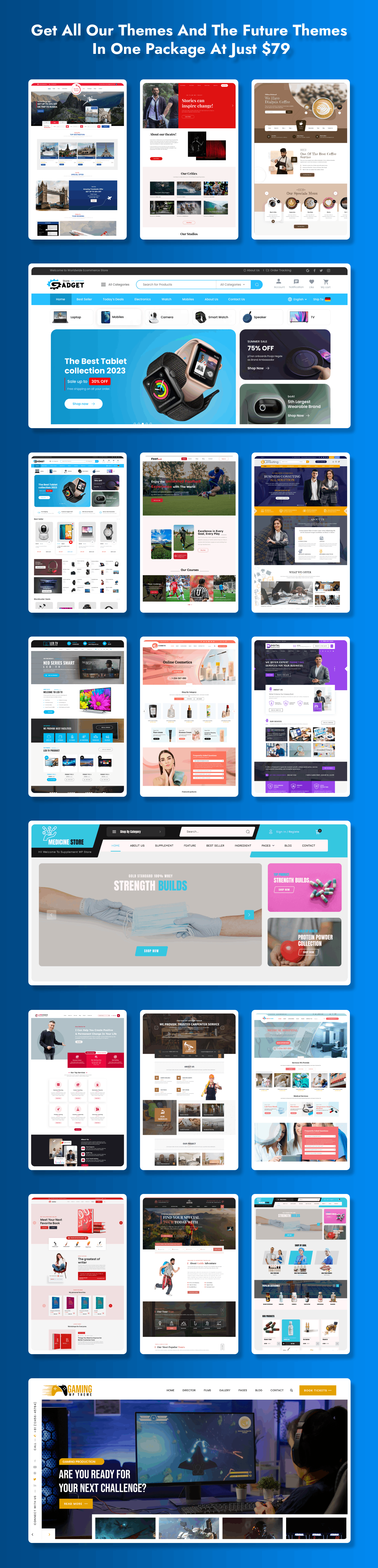
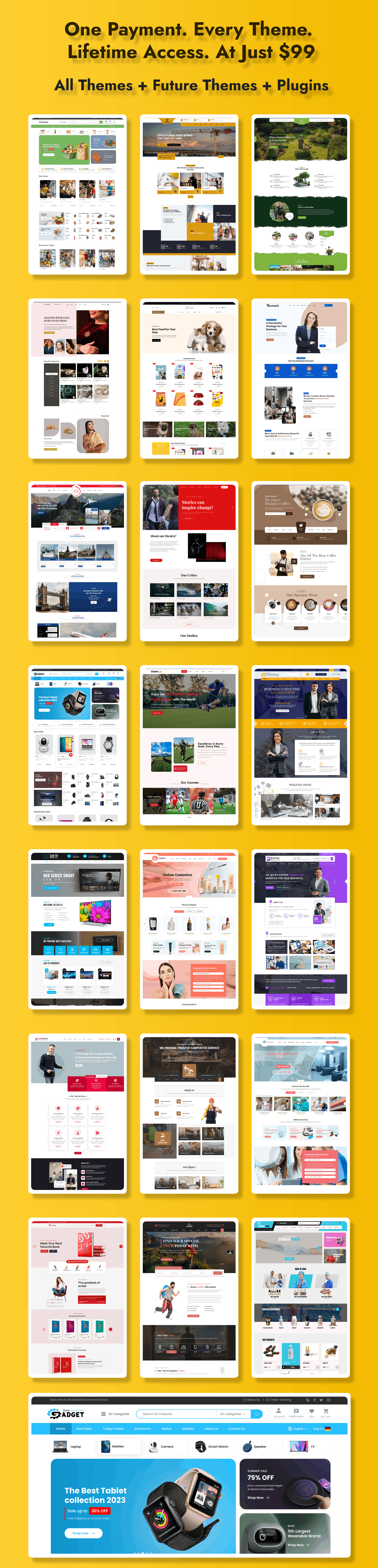
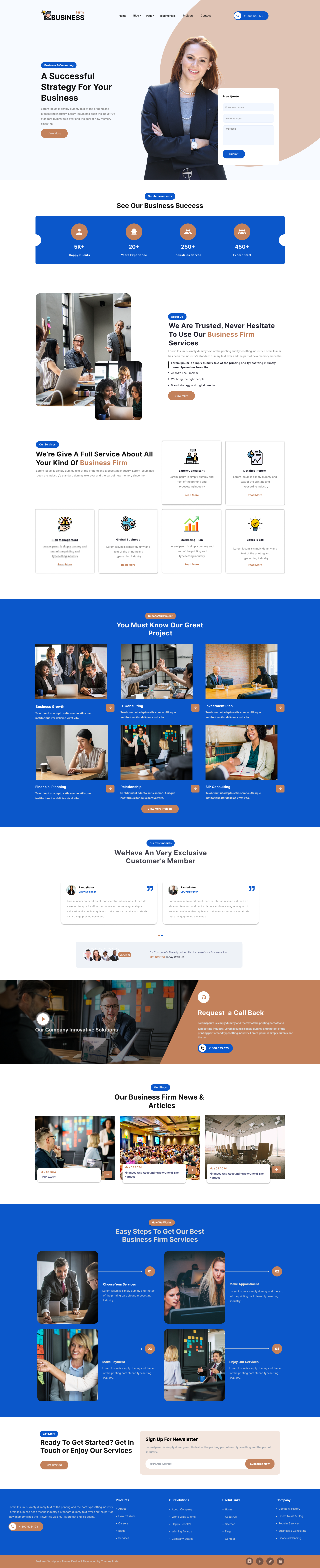
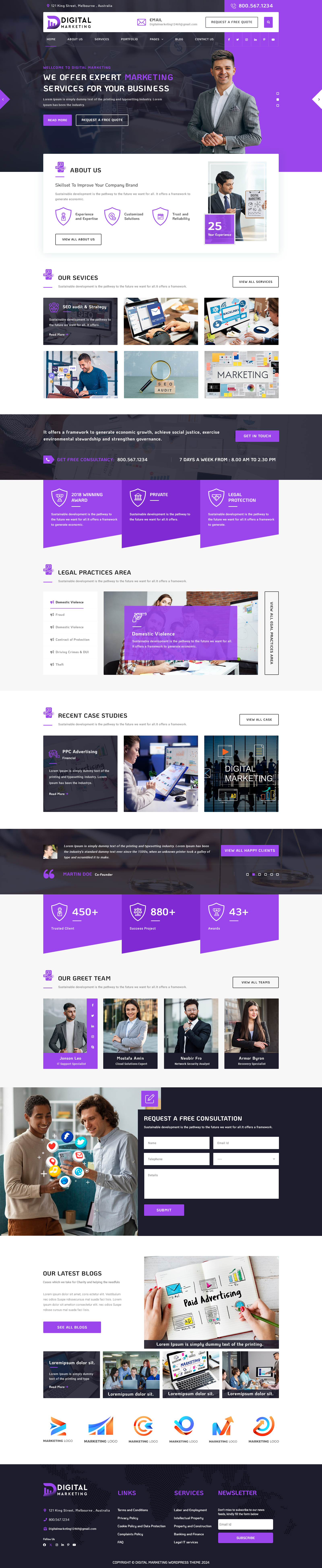
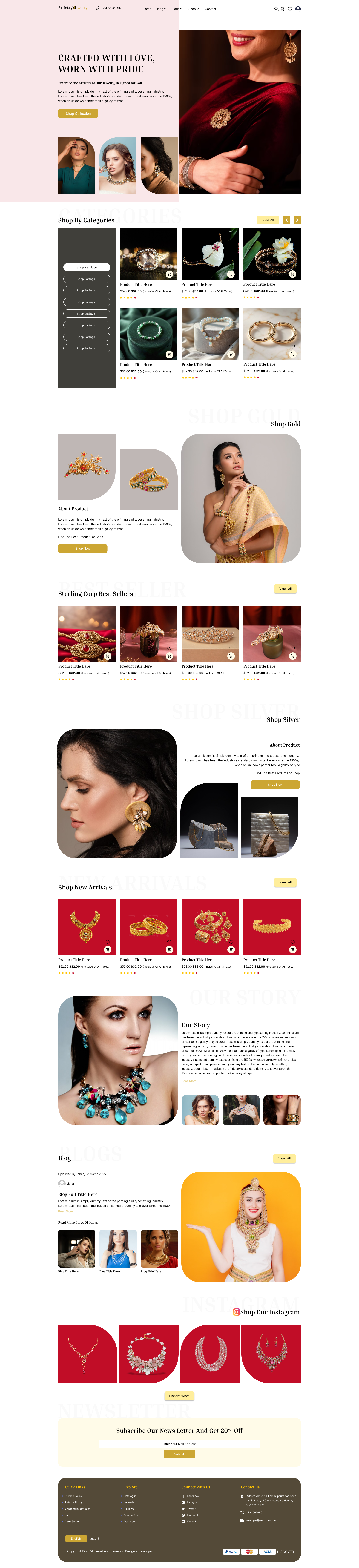
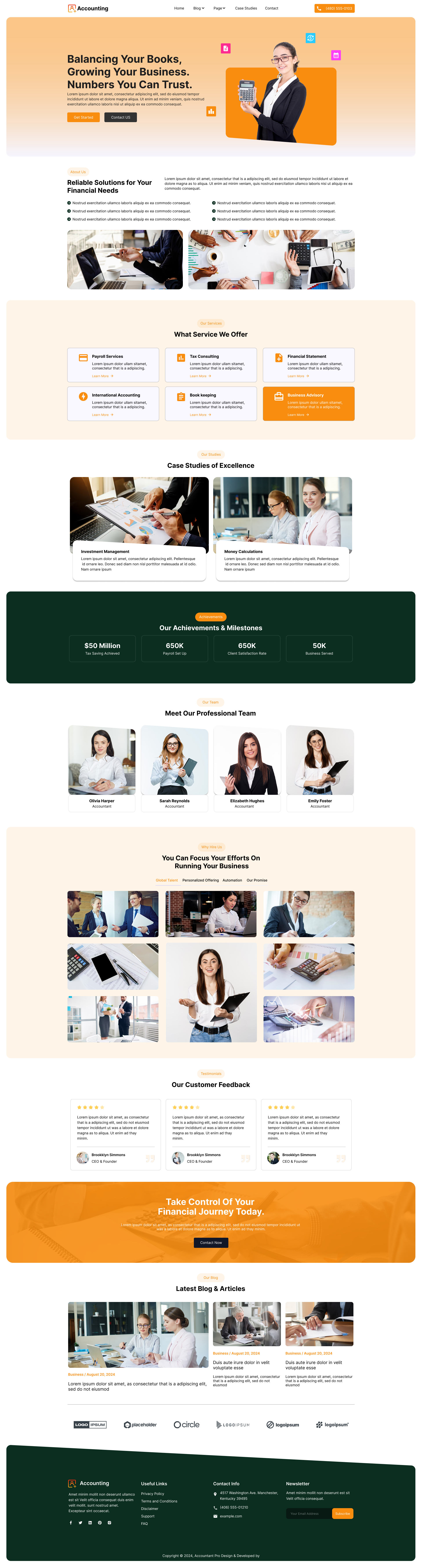
Choosing right WordPress theme Shop is essential for building a professional, fast, and visually appealing website. A well-designed theme not only enhances your website’s appearance but also improves user experience, SEO performance, and conversions. If you're looking for high-quality, fully responsive, SEO-friendly themes, SEO Themes Expert is one of the best platforms to explore. Their themes are crafted with clean code, lightning-fast performance, and powerful customization options suitable for any niche.
To help you get started, here are some of their best-selling premium WordPress themes, each designed to fit a specific industry with ready-made layouts and modern UI/UX elements:
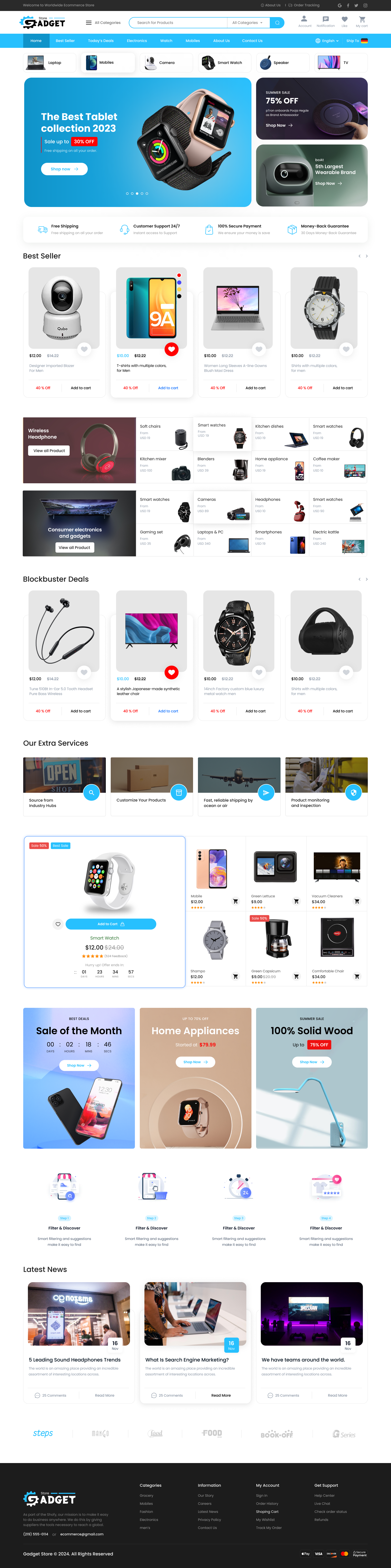
1. Gadget Website Template:

The Gadget Website Template is perfect for brands or businesses dealing in tech products, electronics accessories, gadget reviews, or online gadget stores. This premium template features a sleek, futuristic layout with optimized sections for products, comparisons, reviews, and featured categories. With fast loading speed and SEO-optimized architecture, it ensures better search visibility and effortless navigation. The theme also supports WooCommerce, allowing you to run a fully functional electronics store with smooth checkout and secure payment integration. Whether you're starting a tech blog, a gadget eCommerce store, or a product showcase website, this theme delivers a modern and trustworthy digital presence.
2. Construction Website Template:

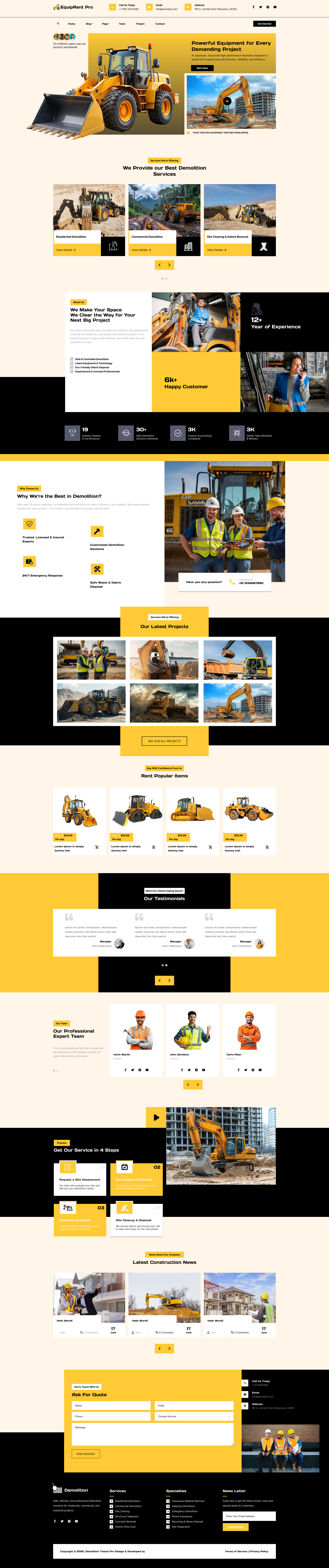
The Construction Website Template is built for construction companies, builders, architects, contractors, and industrial service providers. It comes with a bold and structured design, complete with dedicated sections for services, projects, work gallery, team members, contact details, and client reviews. The layout communicates trust, reliability, and professionalism qualities essential for construction businesses. With drag-and-drop customization, mobile responsiveness, and blazing-fast performance, this theme makes it easy for businesses to showcase their expertise. It also includes inquiry forms, CTA buttons, and service-focused blocks to help convert visitors into leads.
3. Travel Booking Website Template:

The Travel Booking Website Template is built for travel agencies, tour operators, and holiday booking platforms. It features a vibrant layout with interactive elements such as search filters, destination showcases, holiday packages, booking forms, and testimonials from travelers. The theme integrates seamlessly with booking plugins so customers can check availability, compare packages, and book tours instantly. With engaging visuals, dynamic sections, and smooth animations, it creates a memorable experience that drives bookings. Whether you're promoting international tours or local travel packages, this theme gives your travel brand a polished and exciting online identity.
4. Hotel Booking WordPress Theme:

The Hotel Booking WordPress Theme is ideal for hotels, resorts, villas, homestays, and property rental businesses. Built with a luxurious and elegant design, it features real-time room availability, online booking functionality, pricing tables, room galleries, amenities sections, and guest reviews. The theme ensures seamless navigation and a premium user experience, making visitors more likely to book a stay. It is mobile-optimized, ensuring that customers can check rooms and make reservations conveniently from any device. Built for high performance, this theme helps hospitality businesses maximize bookings and improve their online reputation.
5. Supermarket Website Template:

The Supermarket Website Template is crafted for grocery stores, supermarkets, organic shops, and multi-category retail brands. With a clean and organized layout, it supports large product catalogs, category filters, discount banners, and fast checkout functionality. Its product-focused design helps customers easily find what they need, improving shopping experience and boosting sales. The template is fully WooCommerce-supported, enabling advanced inventory management, product variations, payment gateways, and delivery options. Whether you're launching a supermarket website or a multi-vendor grocery platform, this theme is optimized for both performance and conversion growth.
Step 8: SEO Tips for Your New WordPress Site

Since your goal is to build a website that attracts visitors, it’s important to optimize your site for search engines early on.
Here’s how to make your freshly installed WordPress site SEO-friendly:
- Use your main keyword “install WordPress on your website” in your homepage title and meta description.
- Write content that answers user questions clearly and includes this keyword naturally.
- Compress and optimize images with descriptive ALT texts.
- Create an XML sitemap with your SEO plugin and submit it to Google Search Console.
- Use internal links to connect related pages and blog posts.
- Avoid heavy plugins that slow down your site; site speed matters for SEO.
- Use caching plugins like WP Rocket or W3 Total Cache to improve loading times.
Conclusion
Installing WordPress on your website might seem daunting at first, but it’s a straightforward process that anyone can master with clear steps. Whether you use the beginner-friendly one-click installer provided by your host or manually set up WordPress yourself, you're in control of your website's future.
Remember, installing WordPress is just the beginning. Your new website is a dynamic project that grows with your needs. By following this guide, not only do you set up a strong foundation, but you also empower yourself with the knowledge to customize, optimize, and protect your site.
So take that first step confidently. Install WordPress on your website today and unlock endless possibilities to share your story, showcase your work, or grow your business online. The world is ready for your site. Make it happen!
In the above blog we saw some of the best selling themes from SEO Expert Themes, which are built for different niches and website's and SEO Expert Themes also offers WordPress Theme Bundle which comes with 50+ Premium Themes for different businesses.
Frequently Asked Questions (FAQs)
1. What do I need before installing WordPress on my website?
Before installing WordPress, you need a domain name, a web hosting account, and access to your hosting control panel. Most hosting providers also offer one-click installation to simplify the setup process.
2. Can I install WordPress without coding knowledge?
Installing WordPress does not require coding skills. Most beginners use one-click installers provided by hosting companies, while manual installation only requires following a few simple steps.
3. How long does it take to install WordPress on a website?
A standard one-click installation usually takes only a few minutes. Manual installation may take 15–30 minutes depending on your experience and server setup.
4. What should I do after installing WordPress?
After installation, update WordPress to the latest version, choose a responsive theme, install essential plugins, configure permalinks, create important pages, and strengthen security settings.
5. Is WordPress installation free?
The WordPress software is completely free to download and install. However, you'll typically need to pay for web hosting, a domain name, and any premium themes or plugins you choose to use.