

If you're ready to create your first WordPress website but feel overwhelmed by all the steps, don’t worry, you’re not alone! Building a WordPress site in 2025 is easier than ever thanks to beginner-friendly tools, SEO-optimized themes, and powerful plugins. Whether you want to start a personal blog, showcase your portfolio, or launch an online store, this easy WordPress setup guide will walk you through every step.
From picking the best WordPress hosting and discovering top WordPress themes to mastering SEO basics and installing essential plugins, this guide covers all the key points. You’ll also learn tips for boosting your site’s search engine rankings using proven SEO strategies and long-tail keywords. Let’s dive in and get your website online quickly and confidently!
Step-by-Step Guide to Create Your First WordPress Website
Creating your first WordPress website is easier than you think. This step-by-step guide will walk you through every essential part of the process, so you can build a professional, beautiful site without any coding skills.
Step 1: Choose a Business Niche For Your Website
Before you begin building your WordPress website, the most important first step is choosing a clear business niche. Your niche defines what your website will be about, who it will serve, and what value it will offer. Without this clarity, it becomes difficult to decide on the right design, content direction, or functionality.
Start by identifying the purpose of your website. Are you planning to create a personal blog where you can share your ideas and experiences? Do you want to build a professional portfolio to showcase your creative projects? Or are you setting up a business website, service page, or a fully functional online store? Each type of website has unique requirements, and understanding these early will save you time and effort later.
Choosing a niche also helps you understand your target audience. When you know who you’re speaking to whether it’s potential clients, readers, or shoppers you can tailor your website’s tone, layout, and features to meet their expectations. For example, an eCommerce store may need product pages, shopping carts, and payment gateways, while a portfolio site requires clean galleries and project showcases. By clarifying your niche at the start, you create a strong foundation that guides every decision moving forward, ensuring your website is focused, relevant, and effective.
Step 2: Choose a Domain Name and Web Hosting

To create your first WordPress website, you need a domain name (like www.yoursite.com) and trusted web hosting.
How to Pick a Great Domain Name
Your domain is your online identity. Good domains are:
- Short and easy to remember
- Relevant to your niche (for example, "BestBakeryBlog.com")
- Free of confusing spellings or special characters
Use domain search tools like GoDaddy, Namecheap, or Bluehost to check availability.
Comparing Top Hosting Providers

Look for reliable hosting with fast speeds, good support, and easy WordPress integration. Here are some great options when you want to create your first WordPress website:
|
Hosting Provider |
Features |
Price |
Recommended For |
|
Bluehost |
Free domain, automatic WordPress install, support |
$3.99/mo* |
Beginners, small businesses |
|
SiteGround |
Fast servers, strong security, WordPress tools |
$3.99/mo* |
Growing websites |
|
Hostinger |
Budget-friendly, easy setup, good uptime |
$1.95/mo* |
New users, bloggers |
Choose a plan, register your domain, and set up your hosting account.
Step 3: Install WordPress with Ease

Most hosting services include a one-click WordPress installation feature. In order to Install WordPress on your website simply log into your hosting control panel, locate the WordPress installer, and follow the prompts. You’ll enter basic details like your site name, admin username, and password. Once installed, you will have access to your WordPress dashboard, the central hub for managing your entire website. This dashboard is your control room, allowing you to add new pages, adjust design, and oversee all site functions.
Step 4: Select a Theme that Fits Your Style

Themes determine your website’s overall appearance and layout. WordPress offers thousands of free and paid themes that cater to all kinds of websites, from personal blogs to business sites and eCommerce stores. When choosing your first theme, select one that is mobile-responsive to ensure your site looks great on all devices.
Also, pick a theme optimized for SEO, with clean, fast code that helps search engines rank you higher. Finally, make sure it matches your site’s purpose and personal style. You can browse, preview, and activate themes easily via “Appearance → Themes → Add New” in the WordPress dashboard.
Best WordPress Themes from SEO Themes Expert:
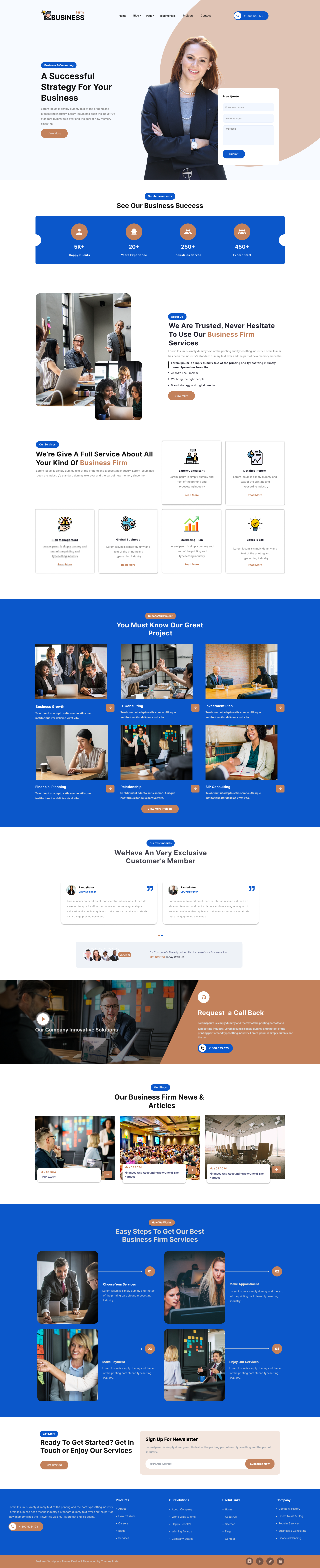
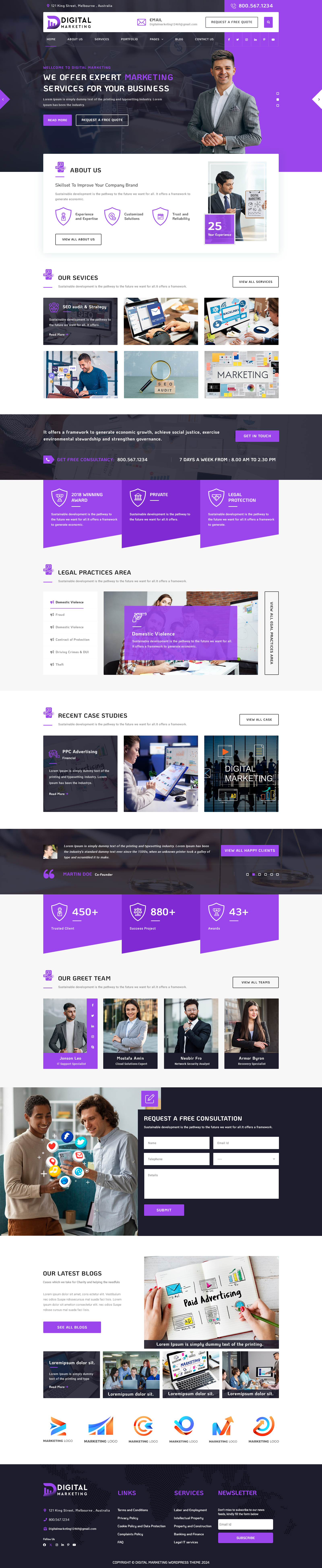
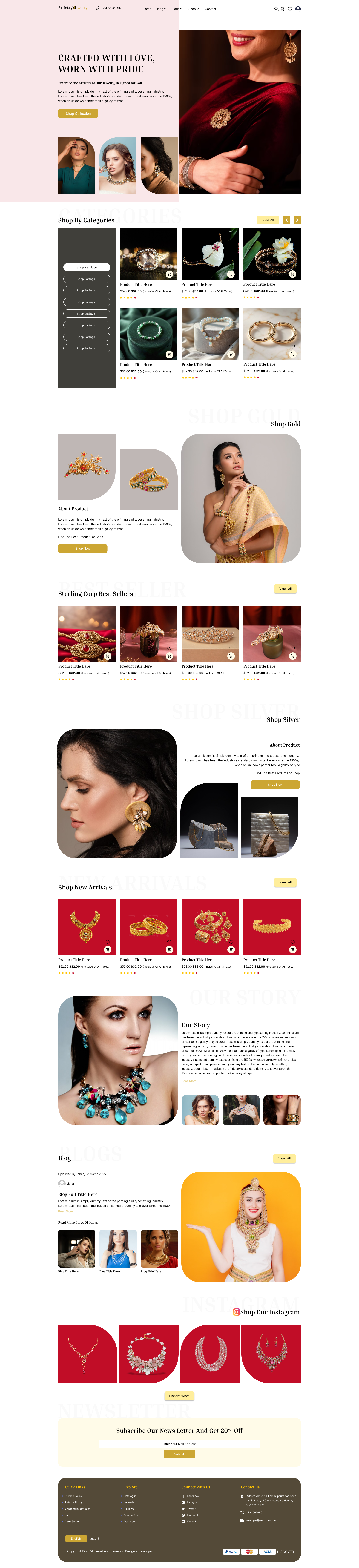
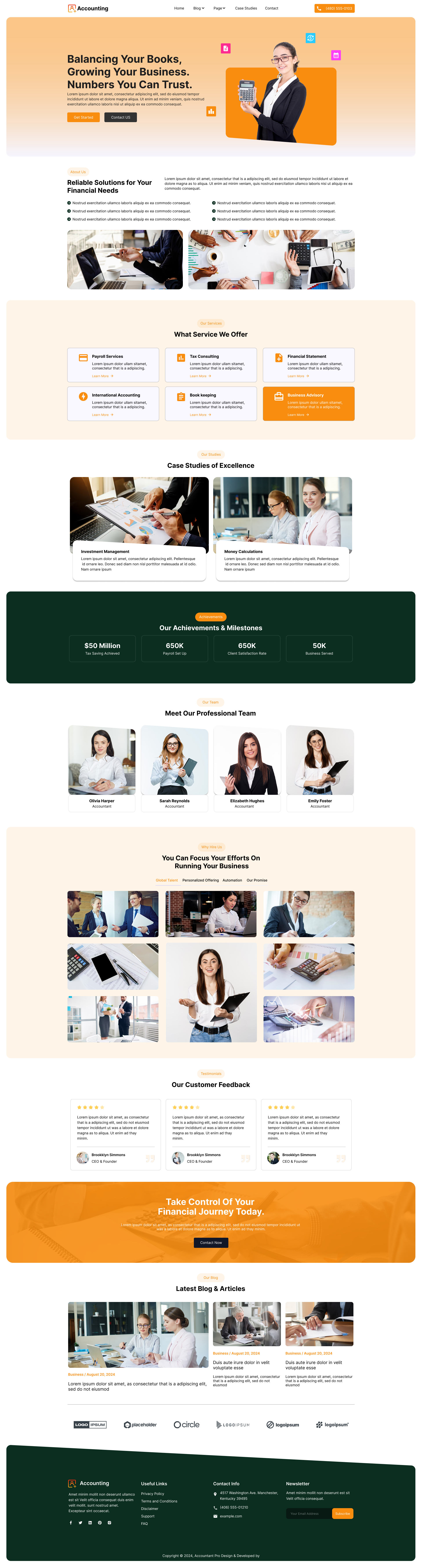
Choosing the right WordPress theme shop is one of the most important steps in building a professional, fast, and visually engaging website. A high-quality theme not only enhances how your website looks but also improves user experience, SEO performance, and overall conversions. If you’re searching for responsive, SEO-friendly, and beautifully designed themes, SEO Themes Expert is one of the top platforms to explore. Their themes are built with clean code, exceptional speed, and powerful customization features, making them suitable for any niche or business type.
To help you begin your search, here are some of their best-selling premium WordPress themes each tailored for a specific industry and equipped with modern UI/UX elements and ready-to-use layouts:
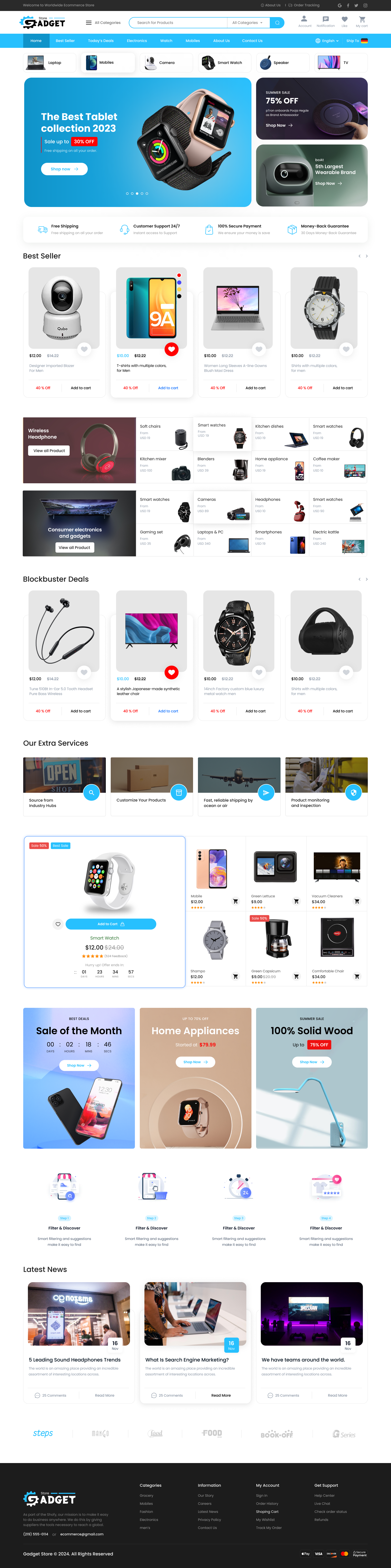
1. Gadget Website Template:

The Gadget Website Template is ideal for tech brands, electronic accessory stores, gadget reviewers, and online electronics shops. It features a sleek, futuristic design with sections for product highlights, comparisons, reviews, and trending categories. Optimized for speed and SEO, it ensures smooth navigation and better visibility on search engines. Full WooCommerce support allows you to set up a complete gadget eCommerce store with easy checkout and secure payments. Whether you're launching a tech blog, a gadget marketplace, or a review platform, this theme offers a trustworthy and modern digital presence.
2. Construction Website Template:

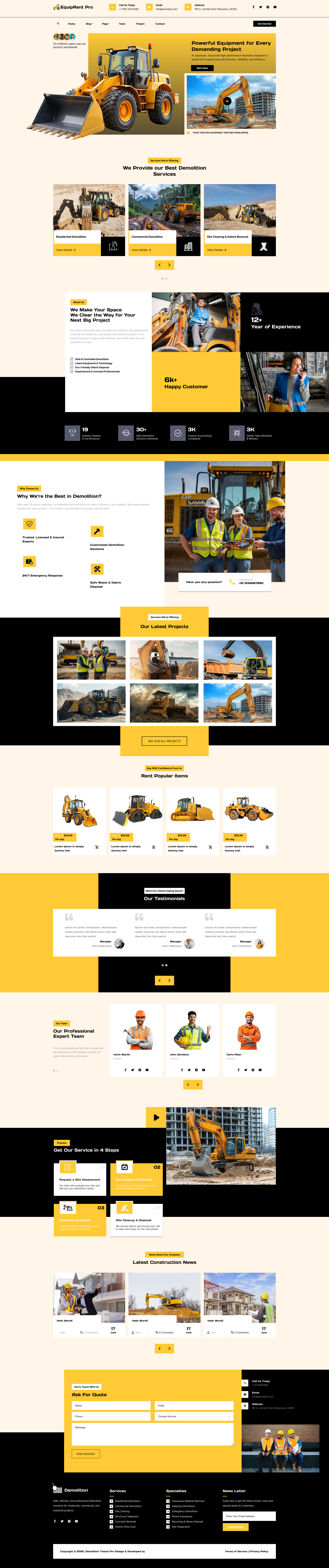
Designed specifically for construction companies, contractors, architects, and industrial service providers, this template offers a strong and structured layout. It includes dedicated sections for services, completed projects, galleries, team members, contact information, and client testimonials perfect for building credibility. With drag-and-drop customization, full responsiveness, and fast loading speed, it helps businesses present their expertise professionally. Inquiry forms, strategic CTAs, and service-focused blocks make it easier to turn visitors into qualified leads.
3. Travel Booking Website Template:

This template is built for travel agencies, tour companies, and holiday booking websites. It features a lively and visually appealing layout with search filters, destination showcases, tour packages, booking forms, and traveler testimonials. It integrates flawlessly with booking plugins, enabling users to check availability, compare packages, and book their trips instantly. With dynamic sections and engaging animations, it provides an enjoyable browsing experience that increases conversions. Whether offering local tours or global travel packages, this theme gives your brand an exciting and polished identity.
4. Hotel Booking WordPress Theme:

Perfect for hotels, resorts, villas, homestays, and rental properties, this theme offers a luxurious and elegant design. Key features include real-time room availability, detailed room galleries, online booking options, pricing tables, amenities lists, and guest reviews. Fully responsive and mobile-optimized, it ensures users can check rooms and make reservations with ease from any device. Built for performance and user convenience, this theme helps hospitality businesses increase bookings and maintain a strong online reputation.
5. Supermarket Website Template:

Designed for grocery stores, supermarkets, organic shops, and large retail businesses, this template supports extensive product catalogs and smooth category navigation. It includes features like filters, discount banners, deal sections, and fast checkout functionality to enhance the shopping experience. With full WooCommerce compatibility, it enables advanced inventory management, product variations, secure payment gateways, and flexible delivery options. Whether creating a supermarket site or a multi-vendor grocery platform, this theme is optimized for performance, usability, and conversion growth.
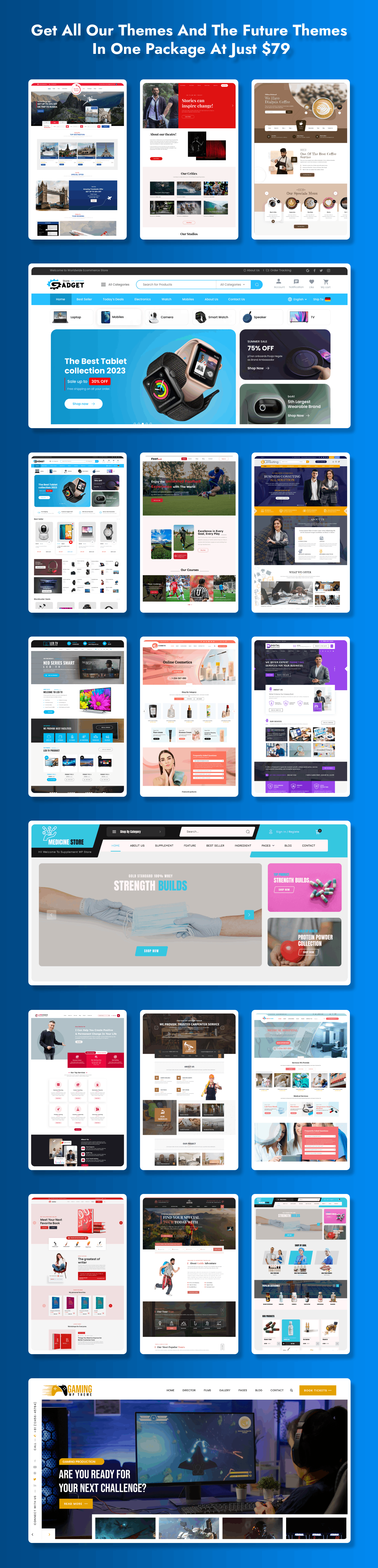
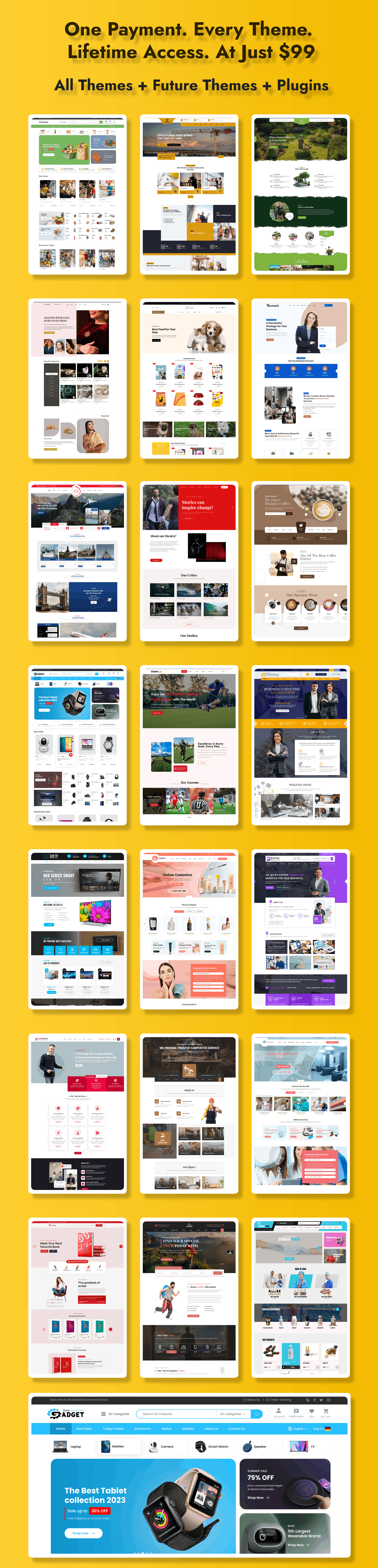
Apart from these themes if you are an Agency or a Website development company then you can also go for the WordPress Theme bundle in which you can get 50+ Premium WordPress Themes with one-click demo Importer and comes with Modern Designs that is perfect for your website.
Step 5: Build Essential Pages

No matter your website type, some pages are essential:
- Home Page: This is your visitor’s first impression. Craft it to be engaging and welcoming, clearly introducing your brand or mission.
- About Page: Tell your story, explain who you are, and why people should explore your website further.
- Contact Page: Provide your email, phone, or a contact form so visitors can easily reach out to you.
- Blog Page: If you plan to publish updates, articles, or news, this page will house all your posts.
- Services/Store Page: Highlight what you offer, whether services or products.
Make sure to sprinkle your main keyword naturally in titles and content to help search engines understand your site's focus and help you create your first WordPress website.
Step 6: Customize and Optimize Your Website

After your pages are ready, personalize your site via the WordPress customizer. Change colors, fonts, upload your logo, and organize navigation menus to create a seamless user experience. For maximum SEO benefits, always include your focus keyword in page titles, meta descriptions, and headings. Use related LSI keywords within your content.
Alt text on images should be descriptive and keyword-rich to improve search visibility. Also, configure your URLs to a clean “Post name” format via “Settings → Permalinks” to make them user and SEO friendly.
Step 7: Add Essential Plugins to Extend Functionality

Plugins are essential tools that enhance your website’s features without needing to code. Key plugins every beginner should install include:
- SEO Plugins: Yoast SEO and All in One SEO Pack help optimize your content for Google by managing keywords, meta tags, and generating XML sitemaps.
- Security Plugins: Wordfence adds a robust layer of protection from hackers and malware.
- Caching Plugins: WP Rocket improves loading speed by caching pages and minimizing website resources.
- Contact Forms: WPForms offers drag-and-drop ease to build contact or newsletter forms.
- Backup Plugins: UpdraftPlus schedules automatic backups to keep your website safe.
You can search, install, and activate plugins from the WordPress dashboard under “Plugins → Add New,” then configure their settings as per your needs.
Step 8: Understand WordPress Basics to Manage Your Site
Learning the basics of WordPress is crucial for maintaining and updating your website efficiently:
- Difference between Pages and Posts: Pages are for static content, such as About or Contact pages. Posts are used for blog entries, news, or dynamic content updates.
- Media Library: Upload, organize, and edit images, videos, and documents here.
- Menus: Create clear navigation menus (Appearance → Menus) so visitors can easily explore your site.
- Settings: Access general and reading settings to control how your website behaves and appears.
Familiarizing yourself with these areas will give you confidence in operating your new website long term.
Step 9: Enhance SEO to Drive Organic Traffic

Search engine optimization ensures your website is discoverable by people searching online. To boost SEO effectively, focus on these areas:
- Use Your Primary Keyword Strategically: Insert your main keyword naturally within page titles, meta descriptions, headings, and opening content. This signals to search engines what your page is about.
- Incorporate Related Keywords: Use related keywords throughout your text to broaden your reach and improve relevance.
- Add Keyword-Rich Alt Text to Images: Every image should have descriptive alt text containing relevant keywords. This helps search engines understand your images and boosts your SEO.
- Create Internal Links: Link pages and blog posts to each other using descriptive anchor text to improve site structure, help visitors navigate your content, and assist search engines in indexing your site.
- Improve Website Load Speed: Optimize images by compressing them and using caching plugins to speed up your website. Faster loading improves user experience and SEO rankings.
- Use SEO Plugins for Guidance: Install plugins like Yoast SEO or All in One SEO. These plugins provide real-time advice on how to improve your pages’ SEO readiness while you edit.
Step 10: Test Your Website and Launch with Confidence

Before officially making your website public, follow these testing steps to ensure a smooth, professional experience for your visitors to create your first WordPress website:
- Check Responsiveness: View your website on different devices, desktops, tablets, and smartphones to ensure it looks great and functions well across all screen sizes.
- Test Menus, Forms, and Links: Click through every menu link, test all contact forms, buttons, and interactive elements to confirm they work without errors or broken links.
- Analyze and Optimize Site Speed: Use tools like Google PageSpeed Insights to check your site’s loading times and follow suggestions to improve performance.
- Review SEO Elements: Double-check that your keywords, meta tags, and image alt texts are correctly implemented for maximum search engine visibility.
Conclusion
Creating your first WordPress website doesn’t have to be complicated or overwhelming. With the right steps, from picking the best WordPress hosting to selecting SEO-friendly themes and essential plugins, you’re well on your way to building an impressive online presence.
Remember, mastering basics like creating pages, customizing your site, and optimizing for search engines using powerful SEO tools will help your site get noticed by the right audience. Whether you’re launching a personal blog, business site, or eCommerce store, WordPress makes it accessible and fun.
Follow this beginner-friendly guide on the Step-by-Step Guide to Create Your First WordPress Website to set up your website quickly, confidently, and with long-term success in mind. Now’s the perfect time to get your site live and start attracting visitors with your new WordPress website!