

Building your first WordPress website doesn't require coding skills or a big budget. Over 40% of websites worldwide run on WordPress because it's free, flexible, and beginner-friendly. This step-by-step tutorial walks you through every detail from planning on How to Start a WordPress Website in under a day, even if you've never touched a website before. Whether you're starting a blog, an e-commerce store like, a portfolio for your freelance work, or a service business site to attract local clients, this guide covers it all with exact clicks, common errors, and fixes.
We'll use real dashboard instructions (like "Appearance and Themes and Add New"), cover pitfalls like slow loading or security hacks, and include pro tips used by agencies. By the end, your site will be mobile-responsive, SEO-optimized, secure, and loading in under 2 seconds. Let's dive in no fluff, just actionable steps.
Why WordPress Powers 40%+ of the Web

WordPress is an open-source content management system (CMS) that's evolved dramatically by 2026 with Gutenberg 18's AI blocks and Full Site Editing. It's completely free to download and use, powering giants like BBC America, The New Yorker, and millions of small businesses. You don't need coding because the drag-and-drop Block Editor lets you stack elements like Lego text, images, buttons, videos, forms all visually with live previews. There are 62,000+ free plugins for any feature (e.g., WooCommerce turns it into Shopify rival for $0), and 13,000+ themes from basic to premium.
It's inherently mobile-responsive (adapts to phones/tablets/desktops automatically), SEO-ready with clean code and sitemaps, and secure when maintained (weekly auto-updates block 99% threats). The dashboard is intuitive: left sidebar with Posts, Pages, Appearance, Plugins everything organized like a modern app. It scales from 10 visitors/day to millions, integrates with Google Analytics, email tools like Omnisend, and even AI content generators. Developers worldwide ensure constant improvements, making it future-proof for trends like voice search (GEO) and AI-optimized content (AEO).
Step-by-Step Guide on How to Start a WordPress Website
Now let's Dive into the detailed guide on how to Start your WordPress website. Below you will find Steps from defining your website's goals to launching your website with the help of SEO Themes Expert's Guide:
Step 1: Define Your Website Goal
Before touching hosting or themes, spend 15-20 minutes clarifying your vision this prevents 80% of beginner mistakes like buying wrong plugins or bloated designs. Ask yourself: What's the primary purpose? A blog for sharing expertise? Selling products via WooCommerce store? Showcasing photography portfolio?
Your goal dictates everything: E-commerce needs payment gateways and inventory plugins; blogs prioritize SEO and fast themes; portfolios focus on galleries. Write down 3-5 must-have features (e.g., contact form, blog feed, shop cart). Sketch a simple menu: Home | About | Services/Blog/Shop | Contact. List initial content: 5 pages + 3 posts. Pro tip: Use free tools like AnswerThePublic for keyword ideas (search "WordPress beginner") and Canva for wireframes.
Step 2: Pick a Domain Name and Hosting Provider
If you’re asking how to start a WordPress website, the process begins with choosing a domain and hosting.

Picking a domain name and hosting provider is a crucial decision when there comes a question of How to Start a WordPress Website. Your domain name acts as your digital identity, so it should be easy to remember, brand-focused, and aligned with your niche. A good hosting provider plays an equally important role by delivering fast loading speeds, strong security, regular backups, and minimal downtime. Best website hosting for WordPress directly impacts user experience, search engine rankings, and overall website performance. Choosing scalable hosting also allows your website to grow smoothly as traffic increases. When combined, a well-chosen domain name and dependable hosting provider form the backbone of a professional, trustworthy, and future-ready online presence.
Top Hosts Comparison (2026):
|
Host |
Speed Score |
Uptime |
Price/Yr (Promo) |
WordPress Features |
Support |
|
Bluehost |
A (CDN incl.) |
99.98% |
$35.40 |
1-click, free domain/SSL |
24/7 chat |
|
SiteGround |
A+ (Google Cloud) |
99.99% |
$71.40 |
Staging, auto-backup |
Priority phone |
|
Hostinger |
A |
99.9% |
$35.88 |
LiteSpeed cache |
AI chatbot |
|
HostGator |
B+ |
99.95% |
$59.95 |
Unmetered bandwidth |
Live chat |
Exact Signup:
- Go to bluehost.com → "Get Started."
- Enter domain → Select plan (Basic for beginners).
- Checkout (use coupon via hostingcoupons.net).
- cPanel login emailed.
Costs Breakdown:
|
Item |
Cost |
|
Domain |
$12/yr |
|
Hosting |
$36-72/yr |
|
SSL |
Free |
|
Total |
$48/yr |
Step 3: Install WordPress

Hosts make this one-click no manual FTP/uploads.
- Login to cPanel (yourhost.com/cpanel, username/password from email).
- Scroll to "Software" and Click "WordPress Installer" or "Softaculous Apps Installer" (blue icon).
- "Install Now" and Protocol: HTTPS and Directory: leave blank and Site Description: "My First Site" and Admin Username: something secure (not "admin") and Password: 16+ chars with numbers/symbols (save in password manager like Bitwarden) and Admin Email: your Gmail.
- Hit "Install" takes 60 seconds. Success screen shows dashboard URL.
- Visit yoursite.com/wp-admin and Login. Welcome screen appears.
-
- Dashboard overview: Black admin bar top, left menu (Posts for blog, Pages for static, Media for uploads, Appearance for design, Plugins for add-ons, Settings bottom).
- Change password immediately: Users and All Users and Edit and New Password. Delete demo
- content: Posts and All Posts and Trash "Hello World."
- Enable auto-updates: Dashboard and Updates and Check "Enable automatic updates."
Step 4: Choose a WordPress Theme

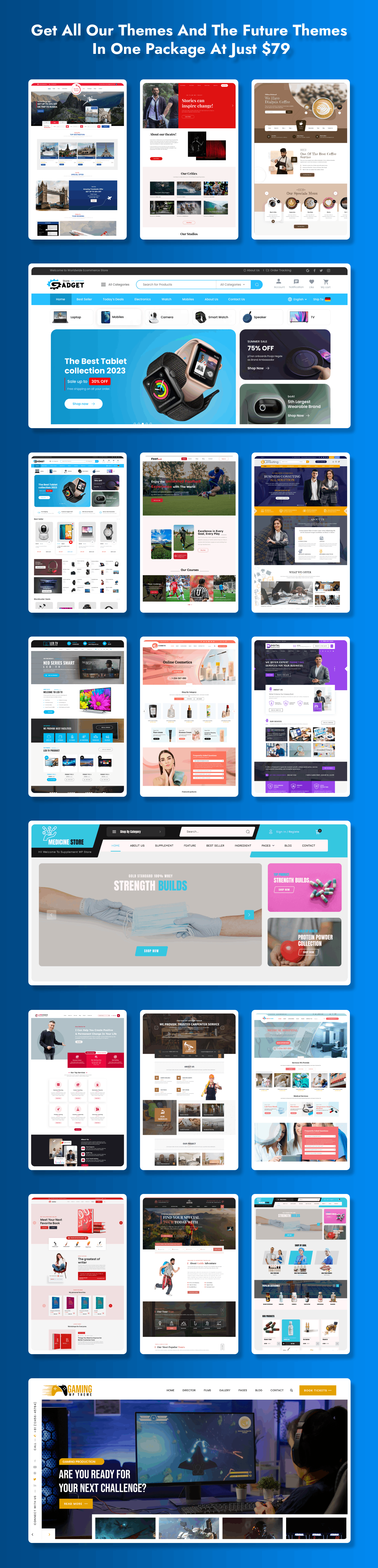
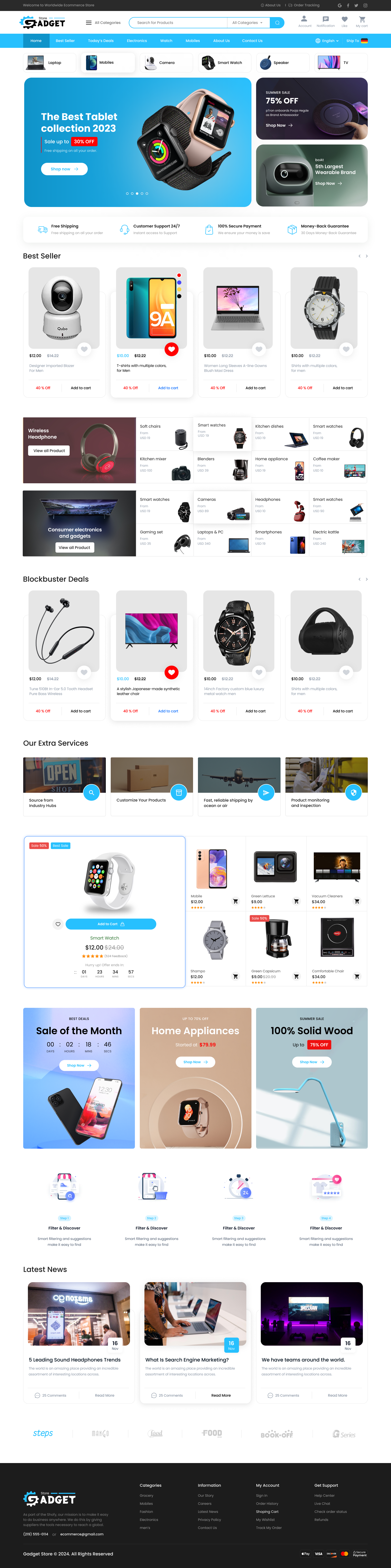
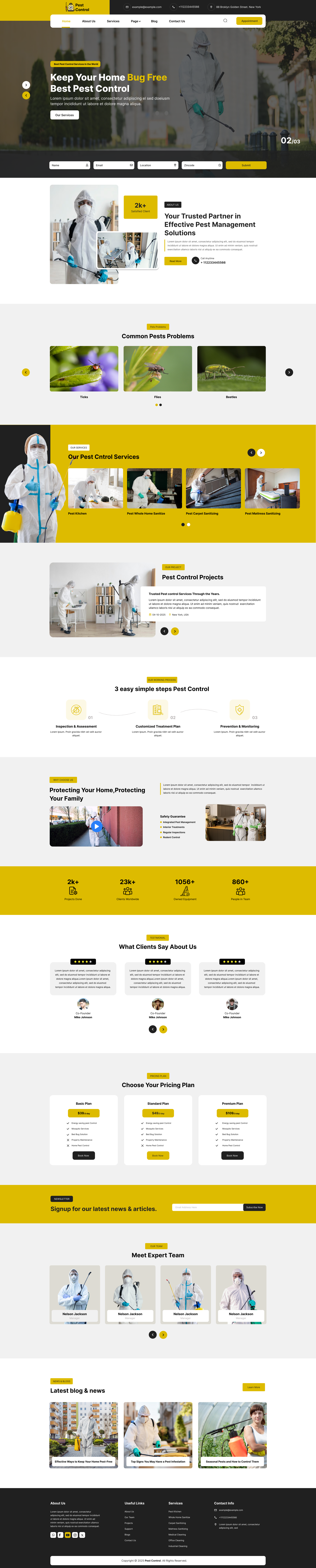
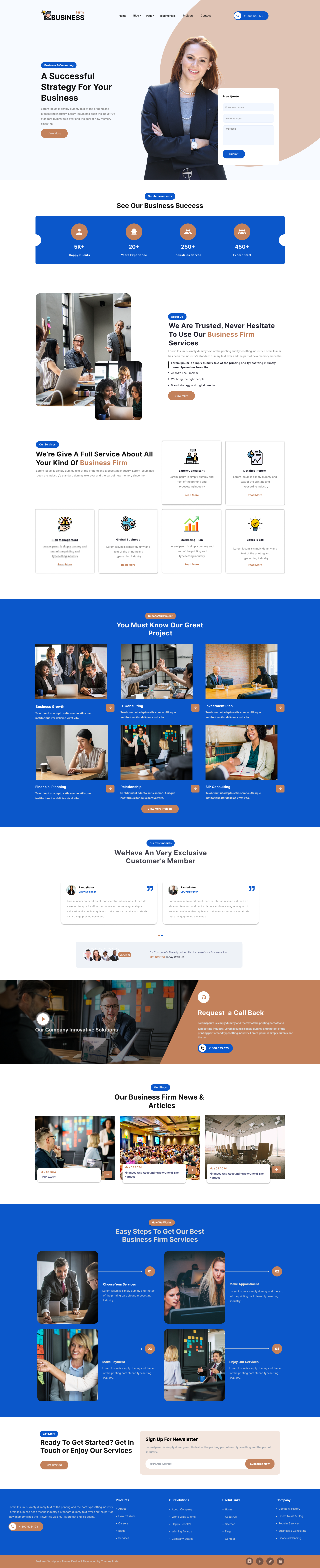
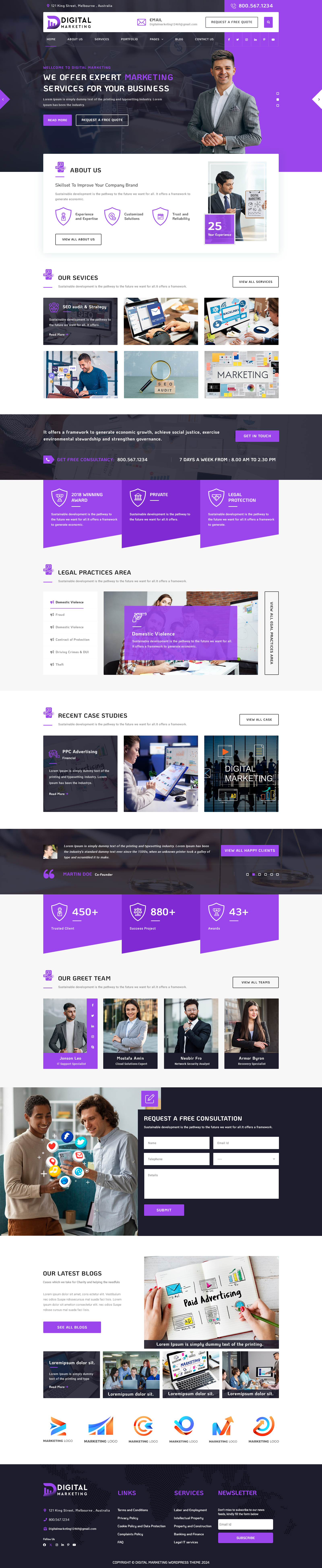
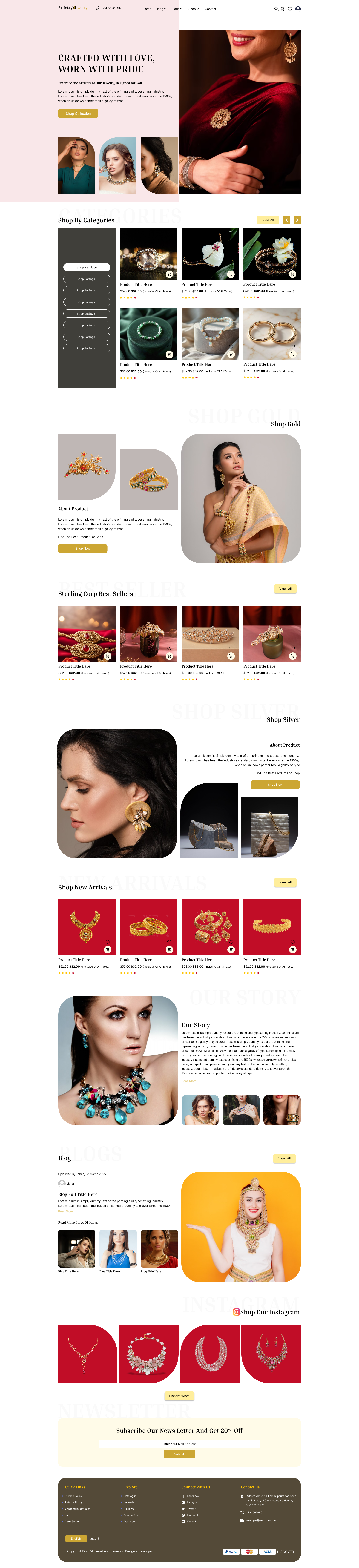
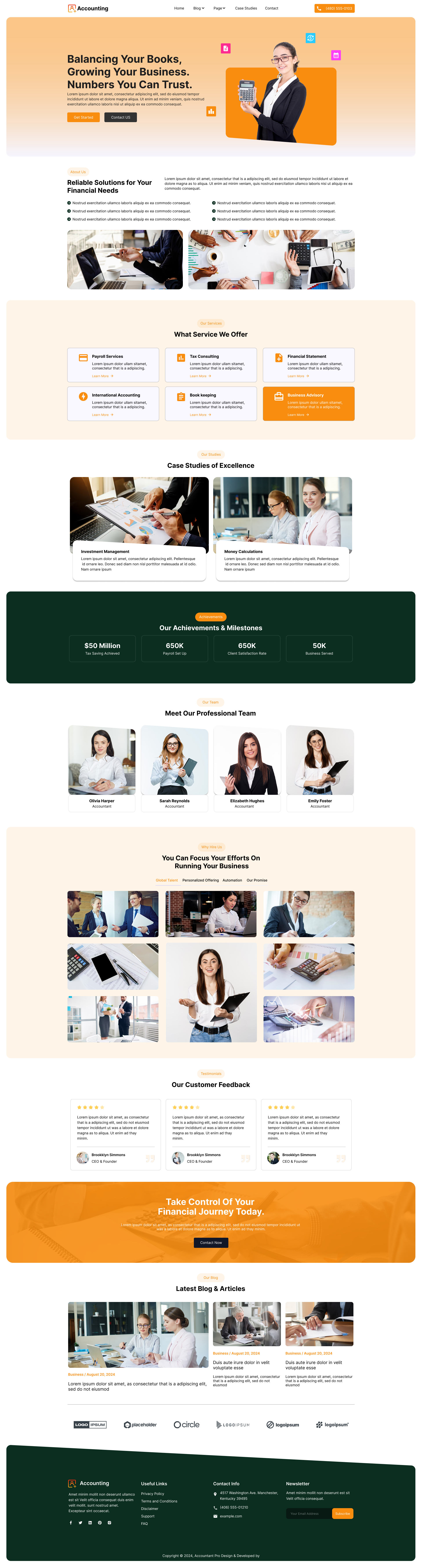
Once you understand how to start a WordPress website, setting up themes and plugins becomes much easier. WordPress.org has thousands free, but premium ones are faster/SEO-better/customizable. For beginners wanting pro results fast, SEO Themes Expert curates high-performance, drag-drop themes optimized for speed (<1s load), mobile, and SEO (schema markup built-in), that you can choose from the WordPress Themes Shop.
|
Theme |
Niche |
Key Features |
Price |
Demo Link |
|
All |
50+ templates, unlimited use |
$69 |
||
|
Builders |
Galleries, testimonials, forms |
$45 |
||
|
Tech/Affiliate |
Product grids, reviews |
$45 |
||
|
Agencies |
Maps, itineraries |
$45 |
||
|
Hospitality |
Calendars, payments |
$45 |
Install: Download ZIP and Dashboard and Appearance and Themes and Add New and Upload Theme and Install Now and Activate. Preview first (live demo). Import demo: Most have "One Click Demo Import" plugin to copy layouts/pages/posts. Pro tip: Check theme score on ThemeForest or MyThemeShop tester (aim 90+). Pitfall: Heavy themes slow site delete unused demos post-import.
Step 5: Customize Your Website

Post-activation, personalize without code.
- Appearance and Customize (blue button, live preview right side).
- Site Identity: Upload logo (510x80px PNG/SVG, <50KB via TinyPNG), add tagline.
- Colors: Edit global palette (primary #007cba, link hover #00a0d2) see changes instantly.
- Typography: Google Fonts (headings Playfair Display, body Open Sans).
- Header: Add site title left, menu center, CTA button right ("Start Free Trial").
- Footer: Copyright + social icons (link Facebook/Instagram).
- Homepage Layout: Drag sections (hero slider, features grid, testimonials) use theme builder.
- Widgets: Appearance and Widgets and Drag "Recent Posts" to sidebar.
Advanced: Additional CSS tab paste header { background: linear-gradient(90deg, #007cba, #00a0d2); }. Publish all.
Step 6: Create Essential Pages

Core structure builds trust/navigation.
Dashboard and Pages and Add New. Use Block Editor (+ icon).

- Home: Cover block (full-width image/video + overlay text "Welcome to My Site" H1 + "Learn More" button). Add Columns block: 3 features (icon + text). Latest Posts block below.
- About: Heading "Our Story" and Paragraph bio (300 words) and Image carousel of team and Stats counter (plugin-free via blocks).
- Contact: WPForms shortcode [wpforms id="123"] + Google Maps embed (copy iframe from maps.google.com and Custom HTML block) + address/phone.
- Services/Products: Accordion block for details (Service 1: desc/price/image). For shop, add WooCommerce products later.
Per page: Featured image (1200x630px), SEO title/meta via Yoast, Publish and View Page. Set homepage: Settings and Reading and "A static page" and Front page: Home.
Step 7: Install Must-Have Plugins

Plugins are the backbone of any websites which gives the functionality to the website, now said that there are some must have plugins for WordPress.
Essentials with setup:
- Yoast SEO: Run setup wizard (SEO and General and Follow 12 steps: title masks, sitemaps on). Per post: Green lights for keyword/readability.
- Wordfence Security: Firewall and Scan and Enable Live Traffic. Login Protection: 2FA.
- WPForms Lite: WPForms and Add New and Contact template and Embed shortcode.
- UpdraftPlus: Settings and Google Drive auth and Backup Now (daily schedule).
- WP Super Cache: Settings and Easy tab and Caching On and Test.Pro tip: Update weekly (Plugins and Installed). Deactivate bloat.
|
Plugin |
Purpose |
Why Essential |
|
Yoast SEO |
On-page SEO |
Free, beginner guides |
|
Wordfence |
Security |
Blocks 90% threats |
|
WPForms |
Forms |
Drag-drop |
|
UpdraftPlus |
Backups |
Saves disasters |
|
WP Super Cache |
Speed |
50% faster |
Step 8: Add Content and Optimize for SEO

Content = king for Google rankings.
- Posts and Add New: Title "How to Start WordPress 2026" and Yoast focus keyword. Body: H2 "Step 1", lists, images (alt="WordPress dashboard"), 1500+ words. Internal links ("See themes here" and link Step 4 page). Images: Media and Add and Compress <100KB.
- SEO: Permalink /%postname% (Settings and Permalinks and Save). Submit sitemap.xml to Google Search Console (free signup).
Step 9: Set Up Menus and Navigation

Guide visitors easily.
- Appearance and Menus and Create New.
- Add pages/posts → Drag to reorder → Save as "Primary Menu."
- Assign to location (e.g., Top Menu). Add dropdowns for subpages.
Step 10: Test Thoroughly Before Launch

Catch issues early.
- Mobile/Desktop: Use BrowserStack or real devices.
- Check: Links, forms, speed (GTmetrix.com), SSL (whynopadlock.com).
- Fix: Compress images, delete unused plugins.
Step 11: Launch, Promote, and Maintain

Go live!
- Remove "Coming Soon" (if using plugin).
- Promote: Share on socials, submit to Google, email list.
- Maintain: Weekly backups/updates, monthly analytics (Google Analytics plugin).
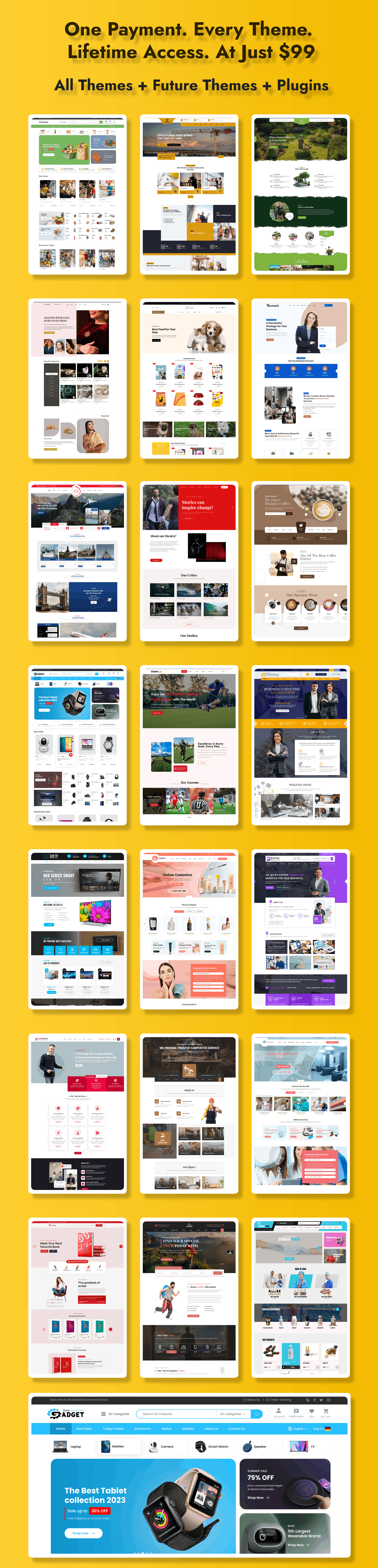
You've got a live WordPress site! It grows with you add features anytime. Now if you are an agency owner, which runs a website development company then you can also go for our WordPress Theme Bundle that comes with 60+ Premium templates of different niches. Moreover you can also check out the WordPress Theme Package which is a Theme bundle with Lifetime Access to 60+ Premium Themes.
Now that you know how to start a WordPress website, you can confidently build and launch your site without technical stress.
Conclusion
Building a website today is no longer a complex or expensive task, and this guide has shown exactly how to start a WordPress website from scratch with clarity and confidence. From defining your website’s purpose to choosing reliable hosting, installing WordPress, selecting the right theme, and optimizing your site for speed, security, and SEO, each step plays an important role in creating a professional online presence. WordPress empowers beginners with a visual block editor, thousands of plugins, and flexible themes, allowing you to launch a fully functional website without any coding knowledge.
Whether you’re creating a personal blog, an online store, a portfolio, or a service-based business website, WordPress gives you the freedom to grow, scale, and adapt as your needs evolve. The real success lies in starting simple, focusing on performance, and publishing quality content consistently. Regular updates, backups, and SEO optimization ensure your website remains fast, secure, and search-engine friendly over time.
FAQ’s
1. Do I need coding skills for WordPress?
No drag-drop Block Editor, themes, plugins handle everything visually.
2. What's the total startup cost?
$48-150/year: hosting ($36+), domain ($12), free plugins/SSL.
3. How to make it fast and SEO-friendly?
Cache plugins, Yoast SEO, mobile themes, compress images (<2s load).
4. Is WordPress secure for beginners?
Yes Wordfence, auto-updates, SSL, strong passwords block 99% threats.
5. Can I add e-commerce later?
Yes free WooCommerce plugin turns any site into a store instantly.